How to make a collection
Open Collections in your site's dashboard and click New collection. Add the fields every item has, like a name, a role and a photo, then add one row per item. In the editor, select a section and pick the collection under Data source. Edit a row later and every page that shows it updates.
Step by step
- Step 1
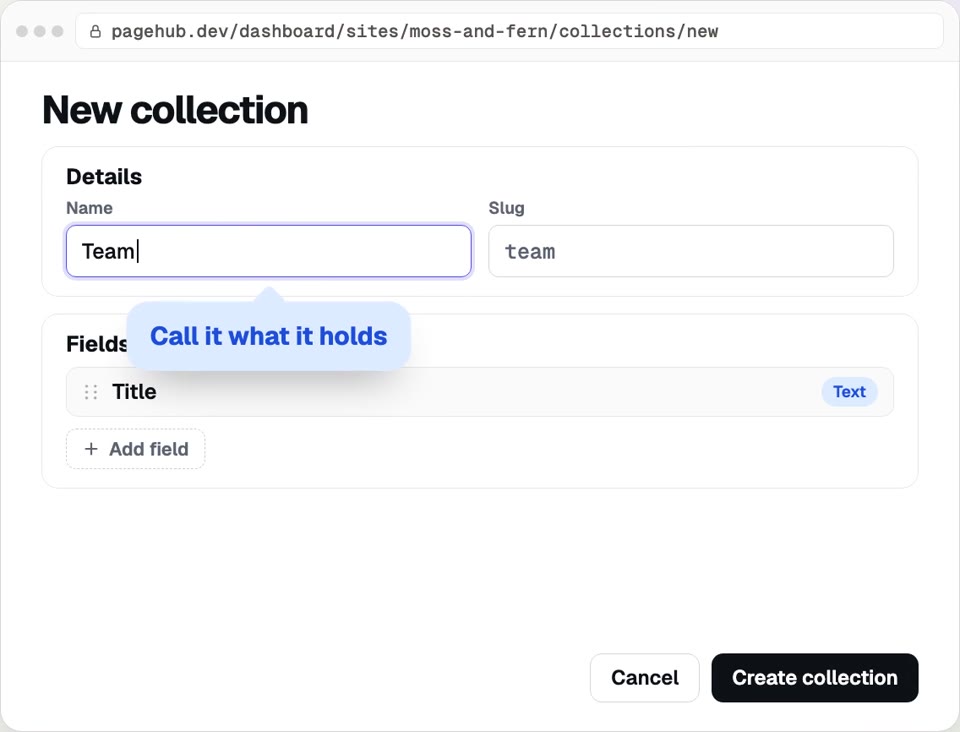
Start a collection
Go to Collections and click New collection. Name it after what it holds.
- Step 2
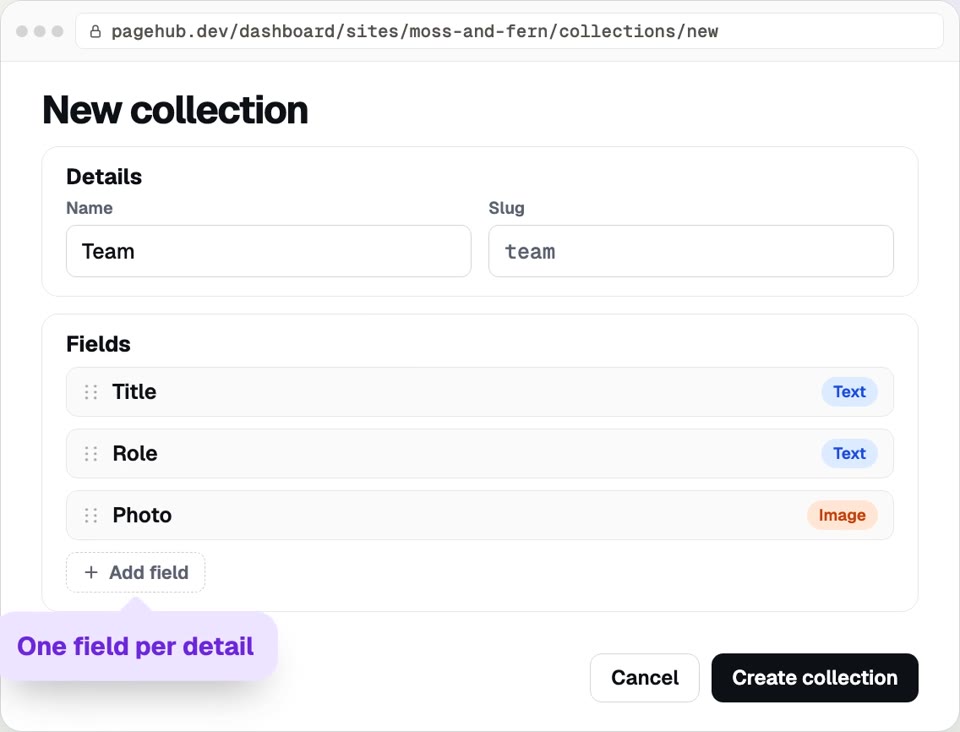
Add the fields
Fields are what every item has. A team member has a name, a role and a photo.
- Step 3
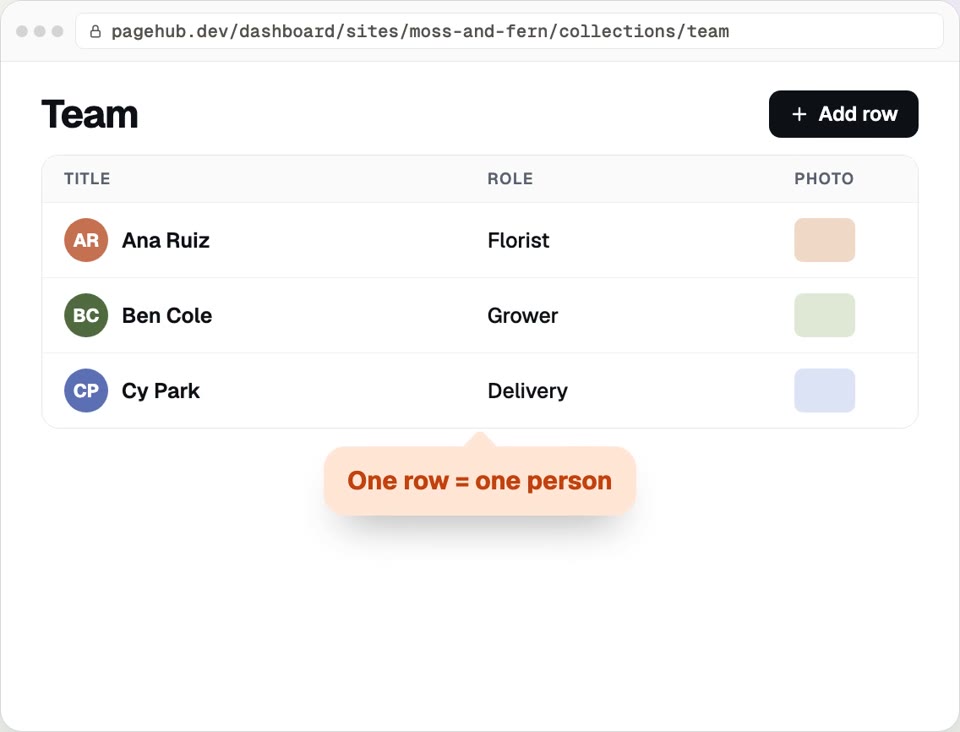
Add your rows
Each row is one item. Here, one row per person.
- Step 4
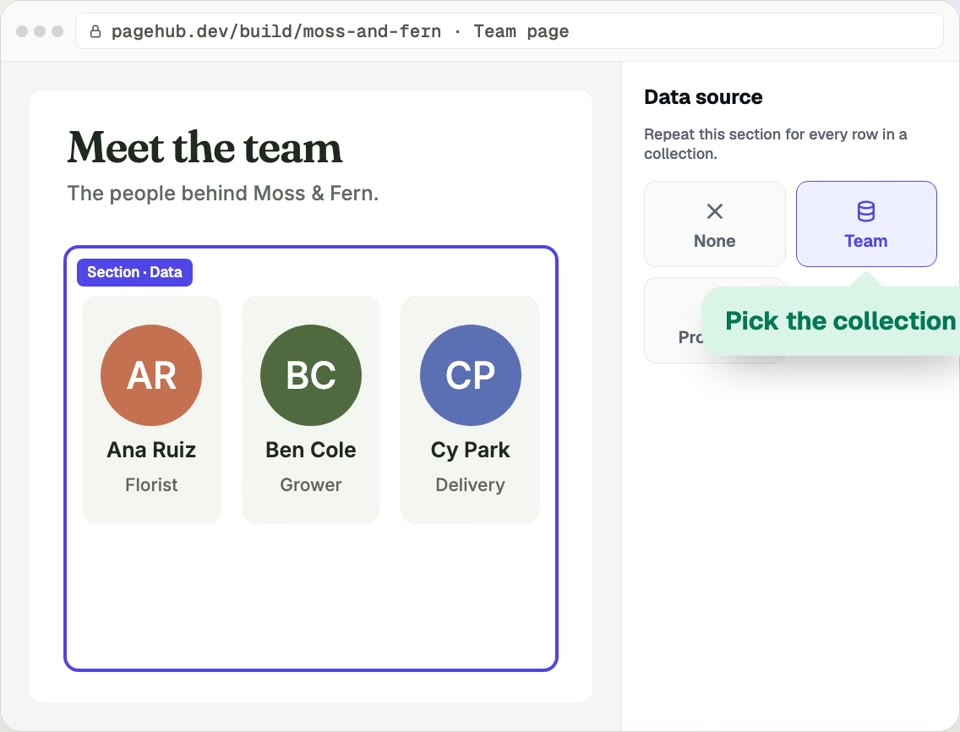
Show it on a page
In the editor, select a section. Under Data source, pick your collection.
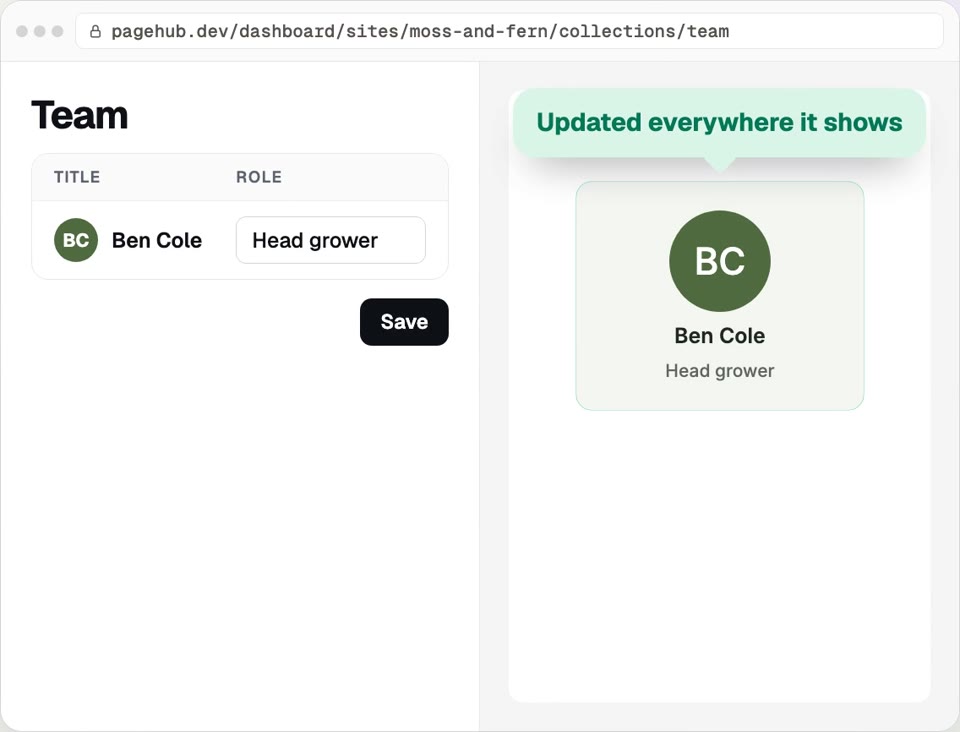
Change it once
Edit a row and every page that shows it updates.
Questions
How do I make a collection in PageHub?
More how-to guides
How to set up your shop
Connect Stripe, sync your products, add a shipping rate and drop a live product grid on your site. Payments go straight to your Stripe account.
Updated
How to add chat to your site
Turn on chat for your site, name the assistant, choose what it asks visitors and add the chat bubble. It answers from your own pages.
Updated
How to connect your domain
Put your site on a domain you own: type it in, copy the two DNS records, add them where you bought the domain, and PageHub confirms it's live.
Updated
How to get form submissions
Add a contact form to your site, give it a name and publish. Read every message in Form submissions and get each one emailed to you.
Updated
How to publish your site
Pick a free pagehub.dev address and put your site live in one click. Later edits stay in a draft until you publish them.
Updated
How to connect your AI
Add PageHub to Claude as a custom connector, approve it and paste the starter prompt. Claude builds your site in a draft you publish when ready.
Updated
Try PageHub on your own domain
The free plan includes 1 published site on your own domain. No credit card.